

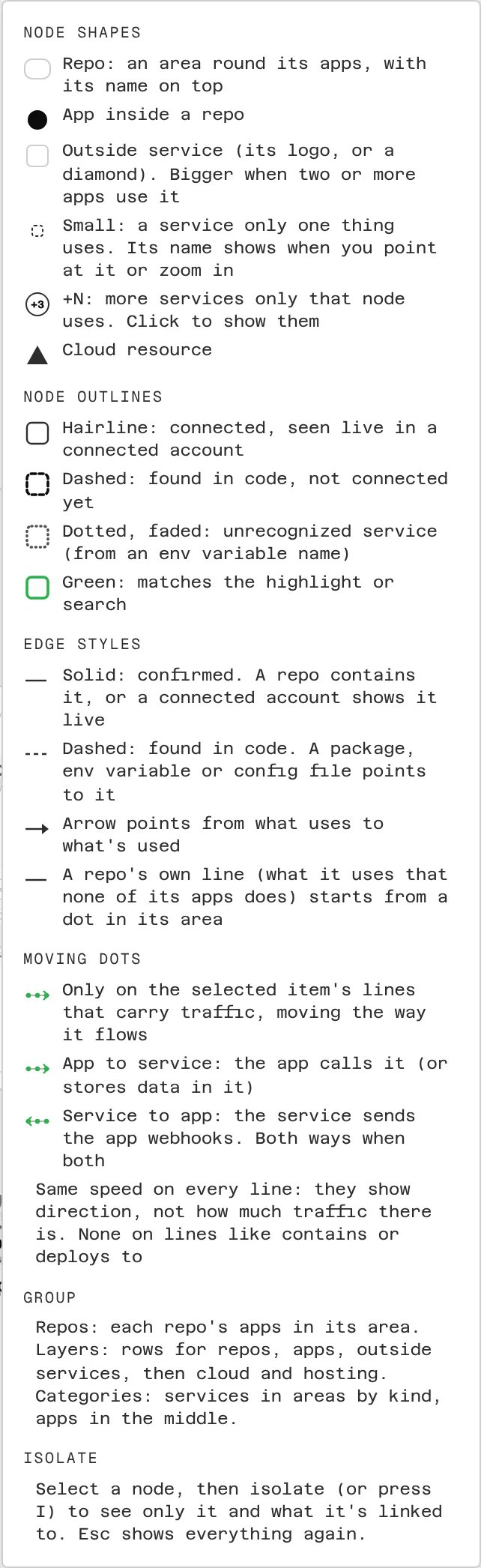
Shapes
Outlines
With setup’s Find services the code no longer uses on, a service no source file imports or calls is drawn faded, whatever its outline, and its details say Unused.
Lines
- Solid: confirmed. A repo contains it, or a connected account shows it live.
- Dashed: found in code. A package, env variable or config file points to it.
- Arrows point from what uses to what’s used.
- A repo’s own line (something it uses that none of its apps does) starts from a dot in its area.
Getting around
- Point at an item and it grows, like the macOS Dock, and the turn holds.
- Click an item’s icon or name for its details: what it is, where it was found, what it connects to.
- Drag an item to nudge it.
- Isolate (or press I) shows only the selected item and what it’s linked to. Esc brings everything back.
- Search and highlights are in the panel at the top of the map (open it with +). Selecting a folded resource from search or the inventory opens its chip.
- Inventory shows every item as a table, cloud resources by their own type (Worker, D1 database, S3 bucket). It opens on the first row’s details; not connected opens that item’s details too.