Each GitHub organization or account the Xerg App is installed on is a workspace, with one shared graph.

Roles

Viewers are free. Owners, admins and members are paid seats: Developer is free for 1 member, and Team is per member active in the last 28 days. See Plans. On Developer, inviting a 2nd member or making a viewer a member offers upgrading to Team or keeping them a viewer. To delete a workspace and everything in it, an owner emails hello@xerg.ai.

Joining

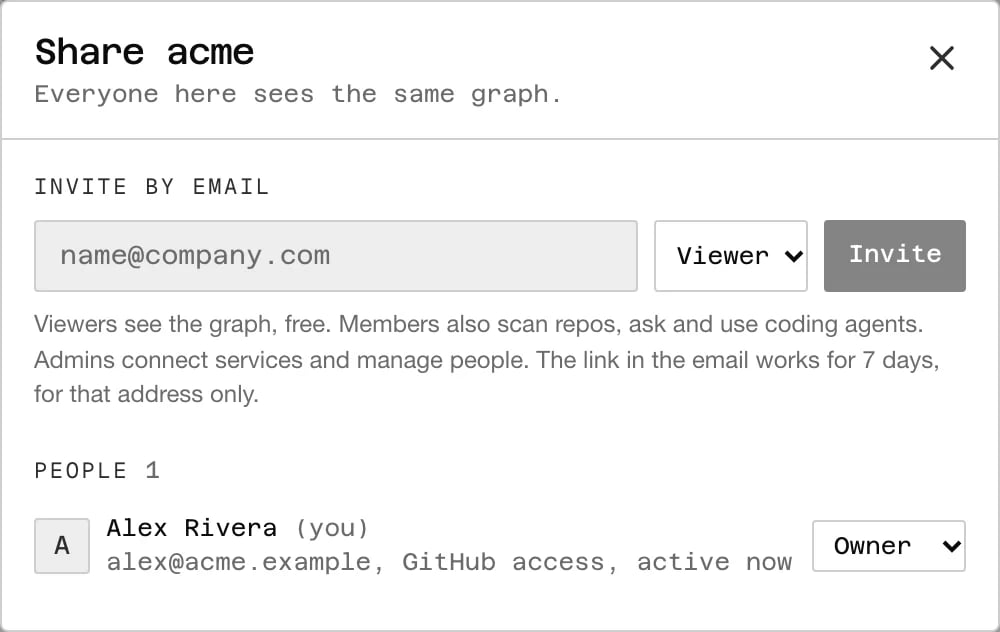
  • By invite. Admins and owners invite people by email from Share, with a role. The link works for 7 days, and only for that address.
  • By request. GitHub access makes a workspace discoverable; it does not grant access to its graph. Use Find a workspace or request access to request viewer access. An admin or owner reviews requests in Share. Approval defaults to Viewer.
  • As a GitHub owner. A verified GitHub account or organization owner can choose Continue to manage the workspace, preserving existing owners. Organization ownership verification needs the GitHub App’s read-only Members permission. Xerg asks for confirmation only when continuing adds a charge or exceeds the Developer allowance; the first included Developer owner needs no billing checkbox. Repository admin access alone does not qualify.
Ownership derived from GitHub is checked again at GitHub sign-in and when its daily proof expires. If it cannot be verified, the derived privileges stop; any independently approved role remains. Existing automatically added viewers move to review during the approval-policy rollout. Their history and workspace data are preserved. The workspace menu counts every approved person, including viewers. Paid seats are shown separately in billing. On Developer, an ownership recovery that adds a second paid member pauses Ask, MCP and connecting until an owner upgrades or keeps one paid member.
Share: invite people by email with a role, and see who's in the workspace

Signing in

With an email link, Google or GitHub. The same verified email is one account, whichever way you sign in. Sessions last 30 days and renew while you use Xerg.

Signing in from an email

Open the sign-in email in the browser where you requested it to enter Xerg automatically. If you open it in another browser or device, choose Confirm sign-in on this device. This keeps email security checks from using your link before you do. Links work once and expire after 15 minutes. An invitation still requires you to accept its workspace and role.